

Docks
The docs for docks and how to add them to OBS.
Caffeinated has dockable elements that can be added as custom sources in OBS. They are Chat, Activity Feed and Viewer List
These sources are only active when the Caffeinated application is running on the same machine as your broadcasting software. Dual-PC users should not have Caffeinated installed on their gaming machine as these docks will not function.
Adding the Docks to OBS #
The Chat dock allows you to monitor and interact with your livestream chat directly within OBS Studio.
- In OBS click the
Docks > Custom Browser Docks - In the pop-up give your dock a name; "Chat" for example,
- Then paste the source link from the Docks section in Caffeinated.
Clicking on will copy the Dock URL to your clipboard.
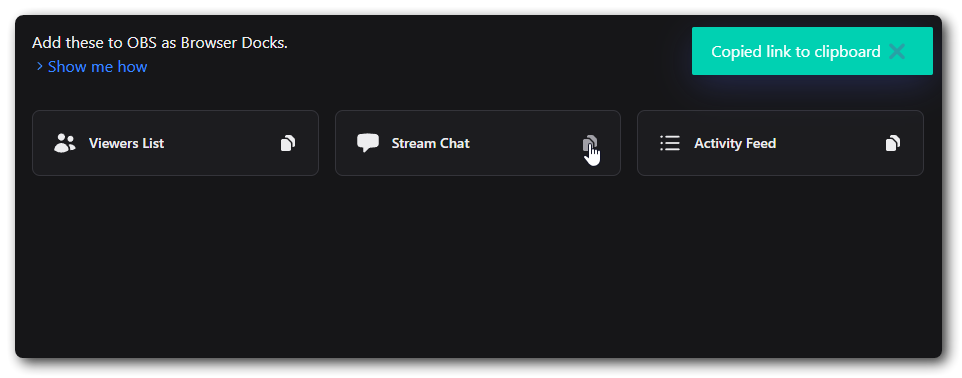
The Activity Feed dock allows you to monitor stream activity such as new followers, subscribers, donations, and other interactions directly within OBS Studio.
In OBS click the Docks > Custom Browser Docks... In the pop-up give your dock a name; "Activity Feed" for example, and paste the source link from the Docks section in Caffeinated.
Clicking on will copy the Dock URL to your clipboard.
The Viewer List dock provides a real-time list of viewers currently watching your stream, allowing you to engage with your audience more effectively.
In OBS click the Docks > Custom Browser Docks... In the pop-up give your dock a name; "Viewer List" for example, and paste the source link from the Docks section in Caffeinated.
Clicking on will copy the Dock URL to your clipboard.
Using the Docks #
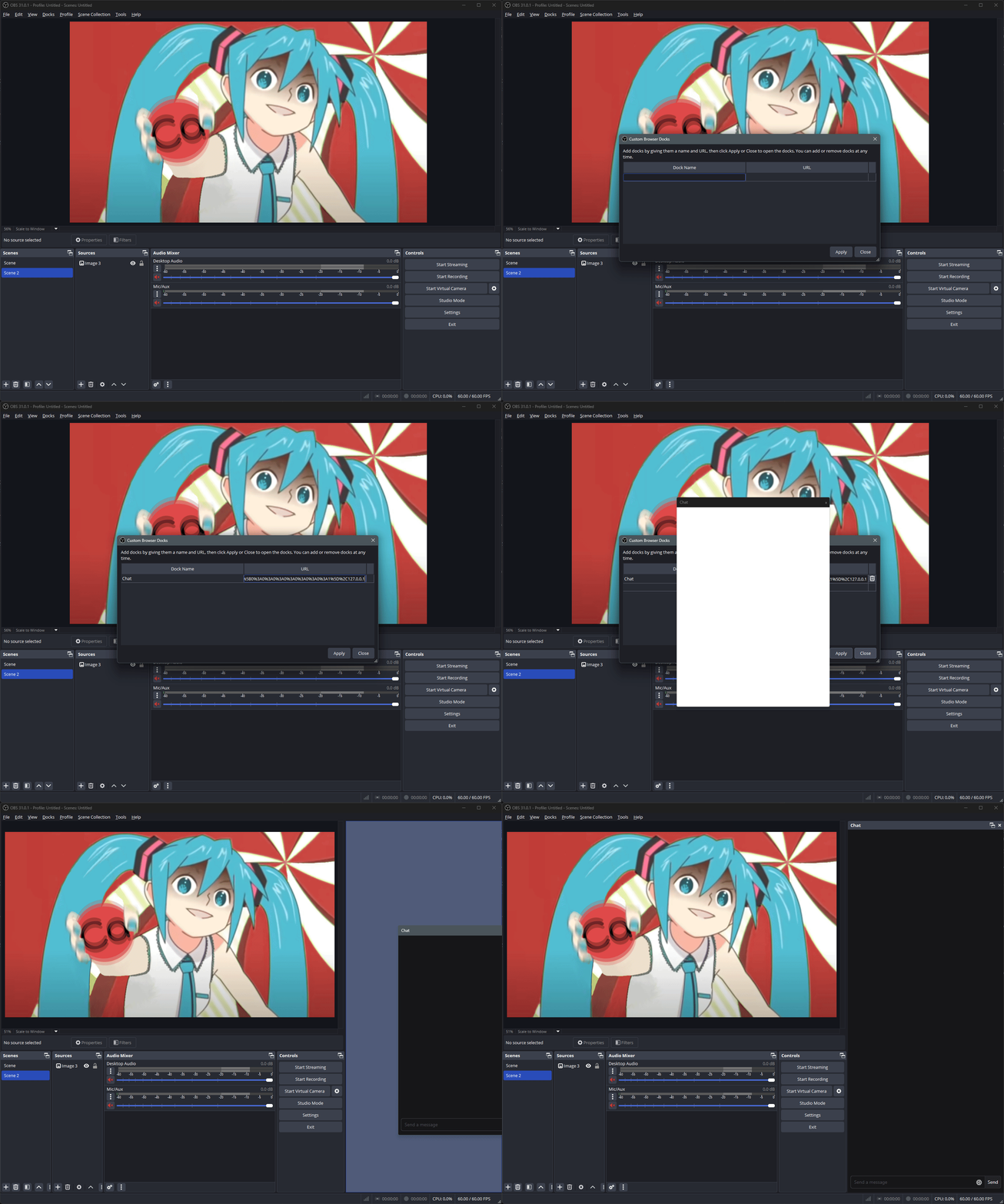
All docks can be undocked from OBS and moved around your screen, or onto a second monitor if you have one. The docks will also follow the same appearance settings as set in Caffeinated's Appearance tab (see Appearance Settings for more information).
Troubleshooting #
If your docks are not loading correctly, try the following steps:
- Ensure that Caffeinated is running on the same machine as OBS.
- Check your internet connection to ensure it's stable.
- Restart both Caffeinated and OBS to refresh the connection.
- Verify that you have the latest versions of both Caffeinated and OBS installed.
- If the issue persists, consider reaching out to our support team for further assistance.